Read about updating and managing your usheru Connect homepage video or image carousel.
Introduction
The “Homepage Carousel” refers to the carousel that typically sits at the top of your usheru Connect homepage and hosts a collection of videos and static images. Each entry on the carousel is referred to as a “Website Video” in the usheru dashboard. They are usually each linked to a movie, or alternatively they can have no link (for example if you want to use a showreel here). The trailers can also be set to autoplay or have a “Watch Trailer” button. The carousel itself can also be set to autorotate or remain static.
Steps
The carousel is managed under Websites > "Website Videos" in the dashboard:
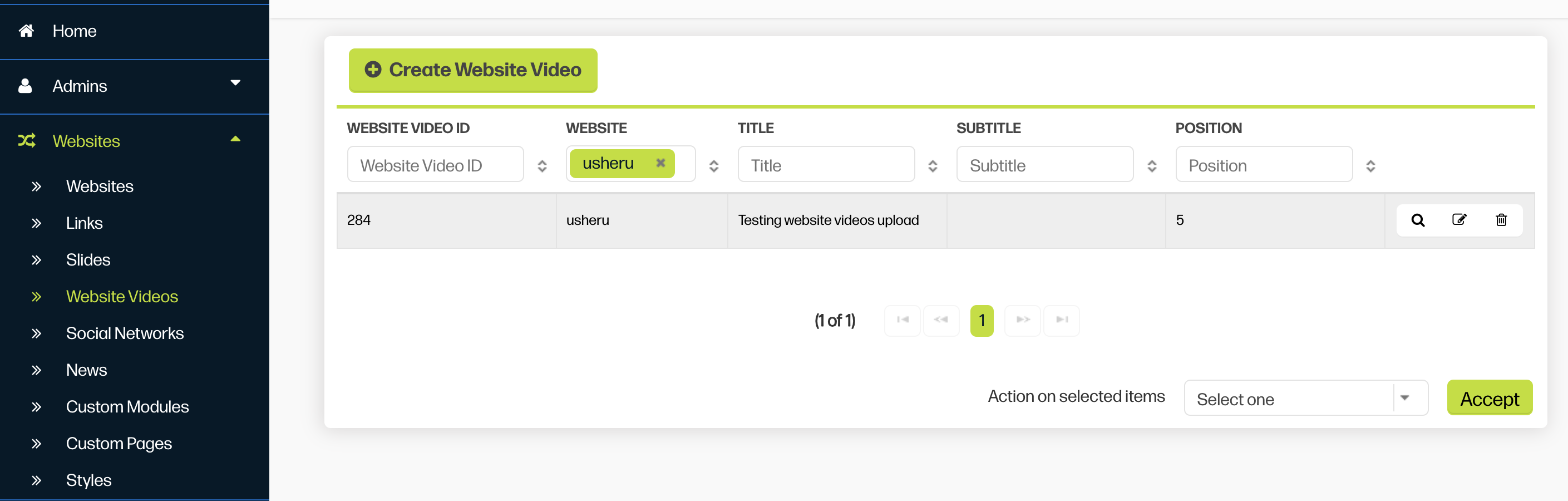
1. To create a new Website Video you simply click the green "Create Website Video"
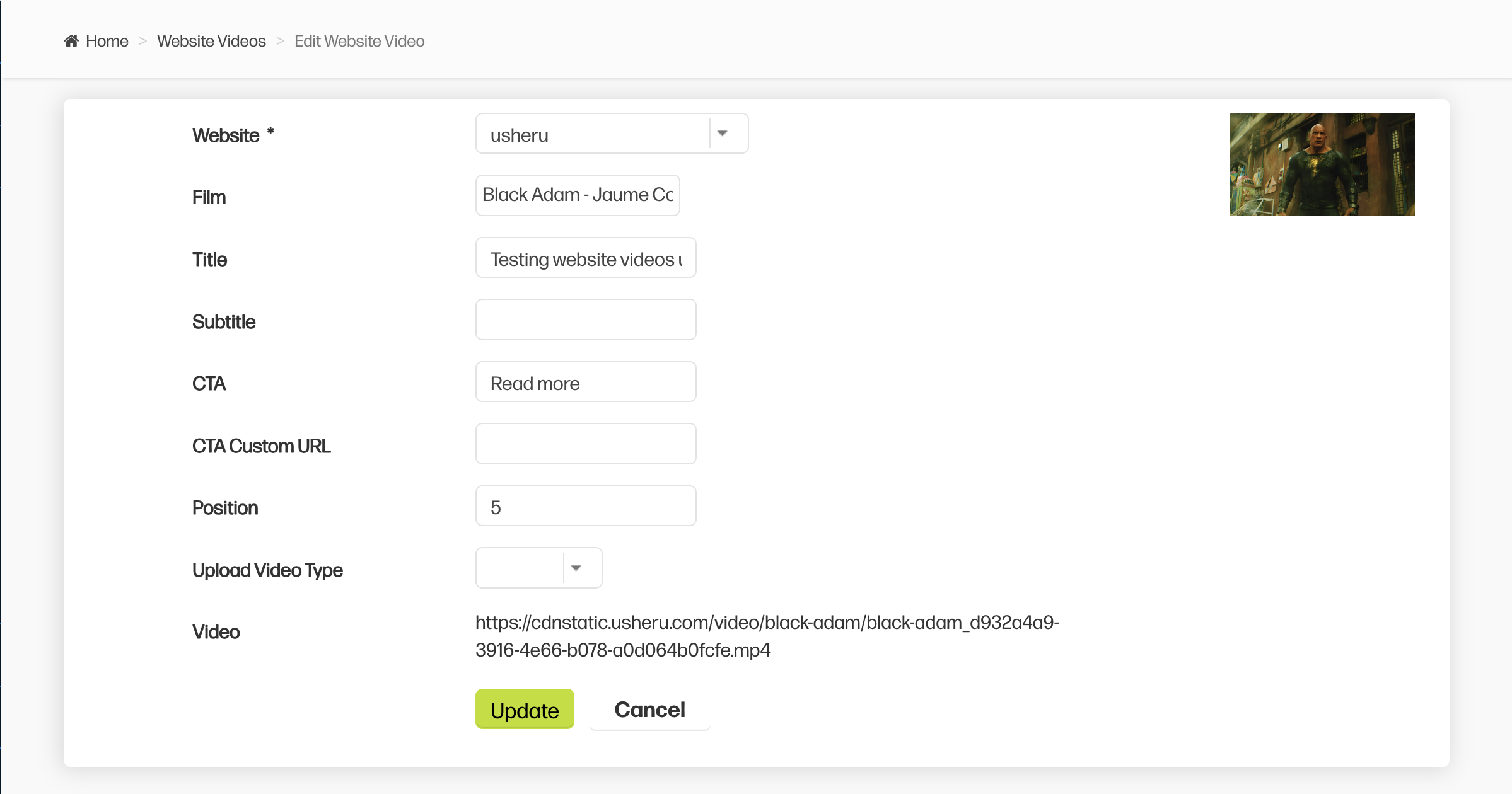
2. This will open up the Website Video creation menu:

1. Film - This is the film that the image or video will link to. All information including Title, Thumbnail Image, Film Logo and Trailer will be pulled from this film automatically, unless you update it with the below fields:
2. Title - Title your image or video. If you have a film logo uploaded to the film assets, this will appear instead of the plain text.
3. Subtitle - One line of smaller subtitle text that appears below the Title or Logo. You might type your release date or 'In Cinemas Now'.
4. CTA - This button will link through to the linked movie page. You can put any text for this, e.g. Buy Tickets, Read More, etc.
5. 'Order' - This is how to sort all videos in the carousel, the lowest value number indicates the first position in the carousel. We recommend using large numbers so it’s easy to slot in new website videos.
6. 'CTA Custom URL' - This where the CTA button will direct users to. This field is not necessary if you have already added a film, as it will by default link there. You can also direct to to other pages on your website by adding the url. If you want to link to an internal page on your website don’t put the entire url but what comes after the website name, so if the url is "www.Clouddreamer.com/about" , put "/about" in this field.
7. Video - (*This field will only populate after you create click "Create")
It will automatically pull the trailer from the film if available but this can be replaced by your own custom video. Here you can select a video type to add. MP4 (under 100MB) is recommended but Youtube or Vimeo links are fine too.
- For youtube you only need to add the code at the very end, after the =.For example: if this is the link - https://www.youtube.com/watch?v=aGCdLKXNF3w
you need to add aGCdLKXNF3w-png.png)
If we add something extra after this, the video usually doesn't work. For example if it is a video from a playlist, the link is usually https://www.youtube.com/watch?v=35wQ9P0AGhQ&list=PL1btWf6rbsJQ_quUJLED9F47LmACzLYbf&index=2 here you should only add 35wQ9P0AGhQ
- For Vimeo, the user needs to include the last part of the link
For example: if this is the link - https://player.vimeo.com/video/581356085 you need to add - 581356085, as the code will automatically add the first part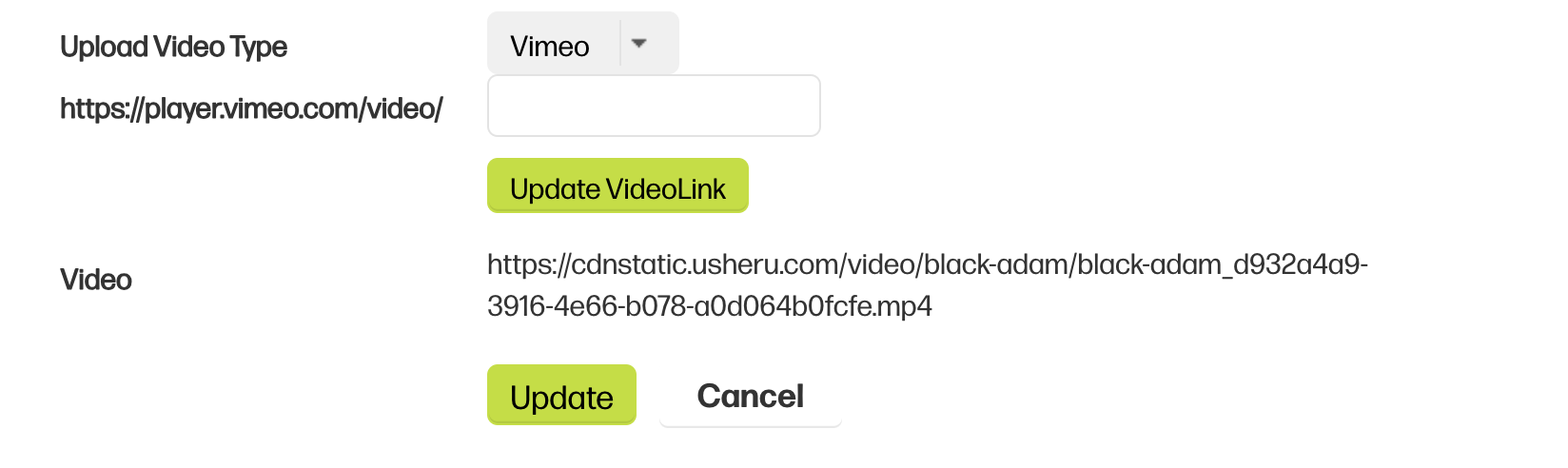 8. Thumbnail - Here you can add a thumbnail image which appears as a holding image before the video loads on screen. If you leave this blank, it will use the tile image from the film. The size should be in 1920 x 1080 or a 16:9 ratio.
NOTE: When creating a new website video, you must save the basic information first, then the video uploader option will appear. It will automatically pull the trailer from the film if it's available, if not you'll be able to upload the file once the "video" is created.
Summary
The homepage carousel can be easily managed via the usheru dashboard and you have full control to add, delete and edit each entry. Using the dashboard you highlight your latest releases on your homepage and direct users to the film page by adding a “Website Video” for each title. Changes can take up to an hour to appear but client support is always on hand to help if things don’t look right.