Step by step guide to using the News feature in the usheru Dashboard
Introduction
With the usheru Connect "News" feature you can add links to external news sources or you can alternatively add your own news articles. If you would like to add the news feature to your site, please contact us at clientsupport@usheru.com.
Steps
Go to Websites -> News and click 'Create News'
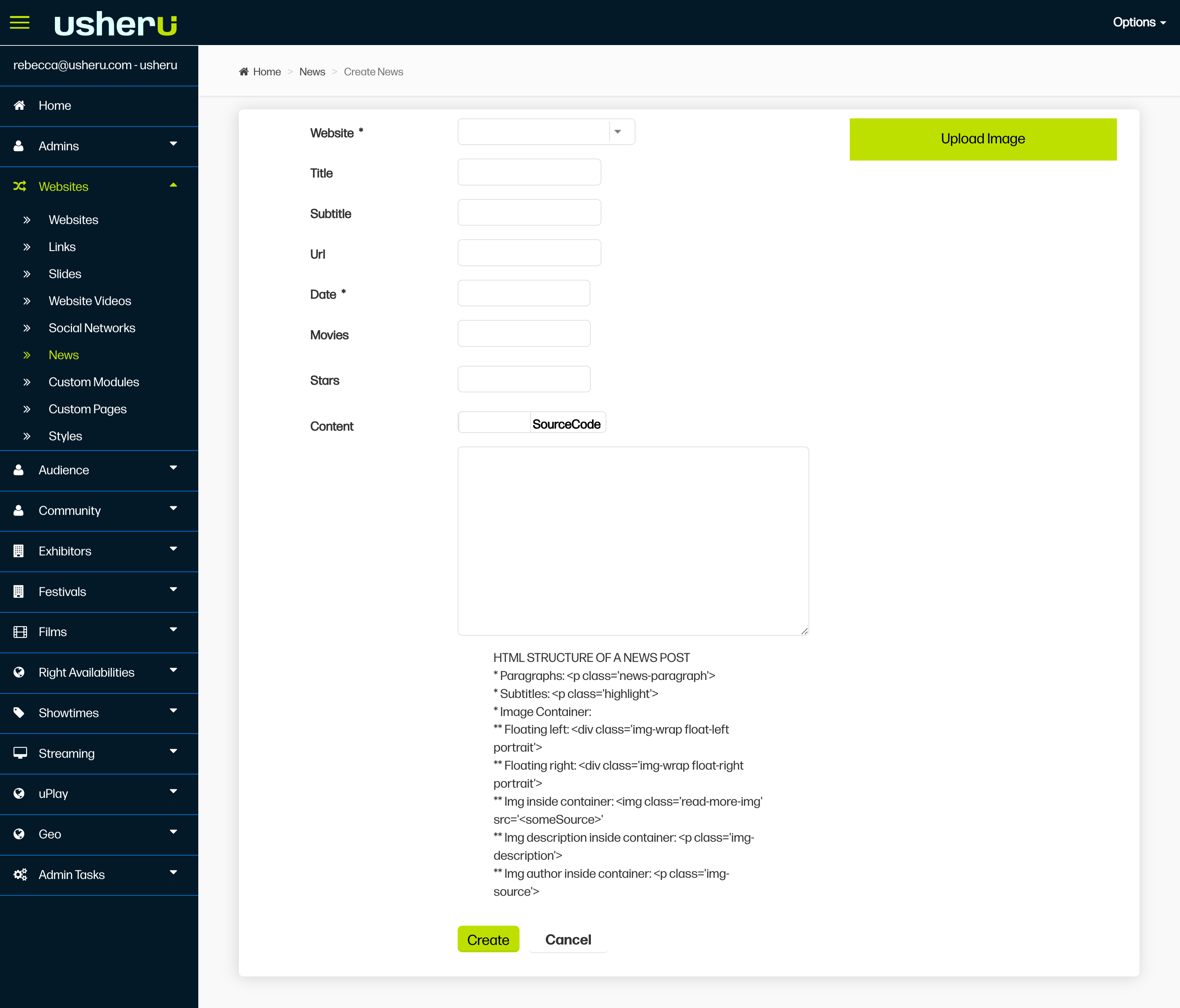
2. Fill each field as you would like it to display on your website. You only need to add a URL if you are linking to an external news source.
3. You only need to fill the 'content' section if you are adding your own news piece or press release. Toggle the 'Source Code' slider to access a regular Text Editor, otherwise you can add text in HTML.
4. Add a key image for the news piece if you like to the field "Upload Image".
5. Click Create.
(Try not to add any images within the actual content of the article as uploading images in this way can affect the performance of your site. Instead please contact clientsupport@usheru.com with your image and let us know where you want it to sit in your article)
Summary
The News feature in your usheru Dashboard gives you full flexibility to keep your website up to date with the latest announcements, press coverage, or editorial pieces. Whether you’re linking to external articles or publishing your own, this tool helps you manage content easily in one place.
For best performance, always use the ‘Upload Image’ field for visuals and avoid adding images directly in the text. If you’d like to enable the ‘News’ feature on your website, or need help setting up image placement or formatting, contact clientsupport@usheru.com.