How and when should you manually add a showtime via the usheru dashboard?
Introduction
Showtime data is automatically imported from our data providers every day and information on the aggregation process and it's frequency can be found here.
As this process happens automatically there is no need for you to manually upload showtimes for films being sold through their normal cinema websites. However there may be some instances where you may wish to manually upload a showtime:
1. It is a special screening that is not being sold through the cinema site
2. It is a screening taking place in a non traditional venue
3. The cinema does not have a website where showtime data is published and can therefore not be imported by our provider.
In these instances our provider cannot import these showtimes automatically and so in order for these showtimes to appear on the showtimes widget they must be added manually.
Steps
Creating an Individual Showtime
Go to Showtimes > Create Showtime and you will see the following:
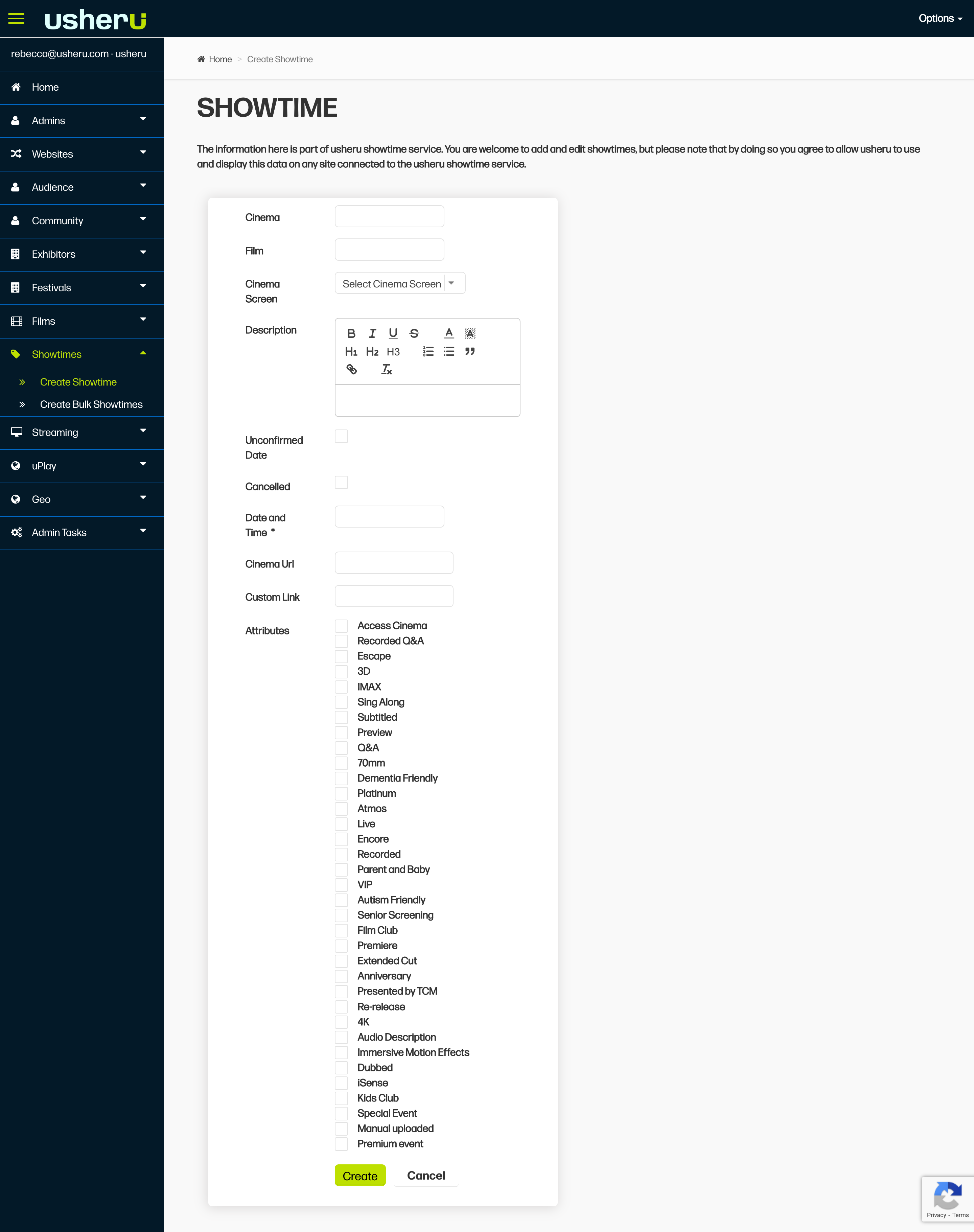
You will need to add the cinema name, film name, date and time and whenever possible the booking link under the field "Cinema Url". If the screening is taking place in a non traditional venue aka (townhall, community centre etc), you will need to contact clientsupport@usheru.com and we will create this venue in our database for you.
If needed you can add special attributions like "Q&A" or "Subtitled"
Click create.
Creating Multiple Showtimes
If you are creating a number of showtime’s you can do this using a csv template. Please create one single showtime using this method as a test to ensure showtimes are attributed to the correct movie. If you have any issues or can’t find the showtime after this, please stop and send a request to clientsupport@usheru.com.
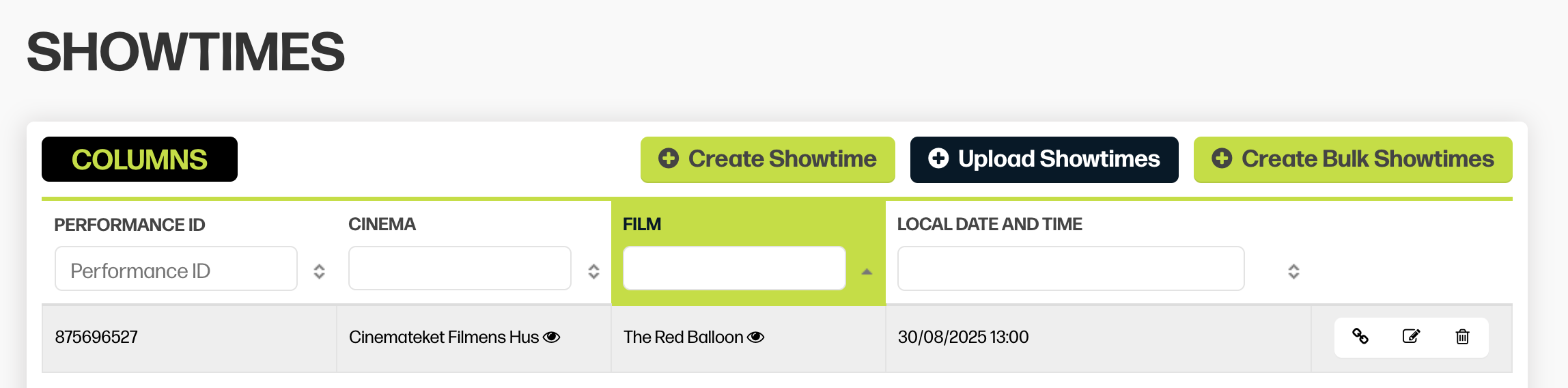
Search for the film you are creating the showtimes for and click the ‘View Showtimes’ button.
.png?sv=2026-02-06&spr=https&st=2026-07-15T11%3A58%3A03Z&se=2026-07-15T12%3A10%3A03Z&sr=c&sp=r&sig=qwg1ylYLQNMT2a5W3B6ktjZn15wP8eoatGJU7yJ75Ps%3D)
Click the button "Upload Showtimes"
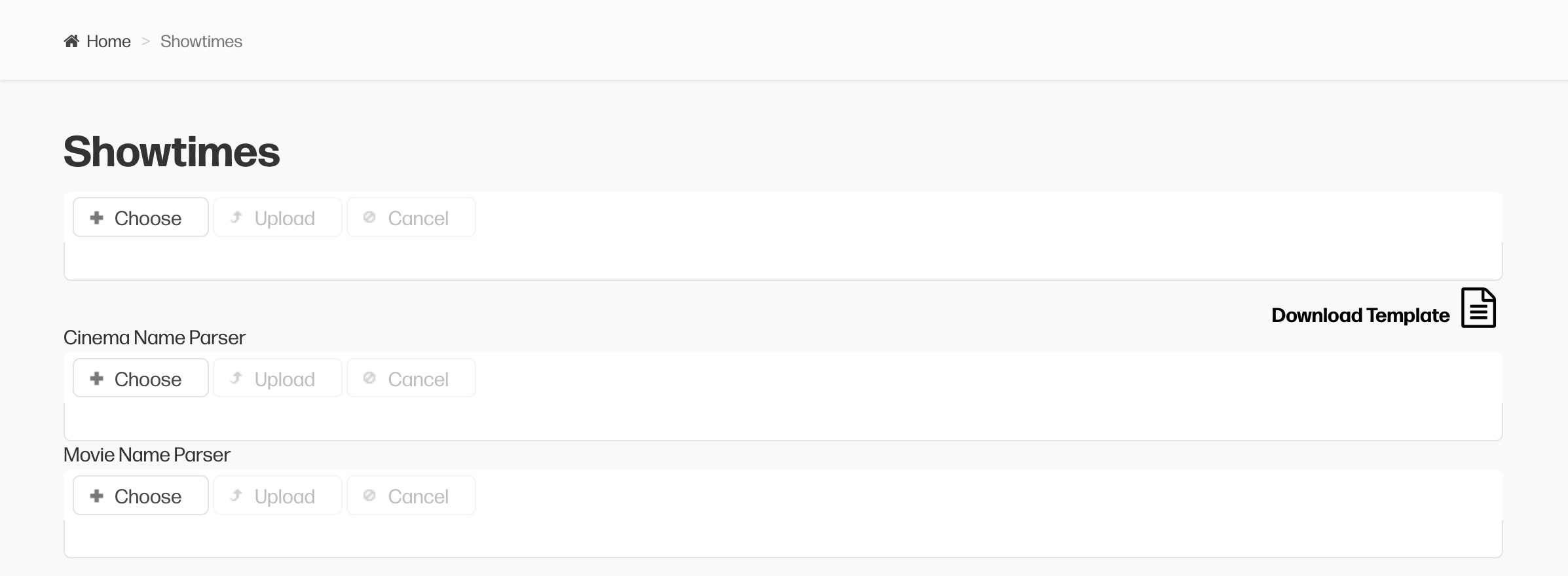
Click ‘Download Template’ to download the showtimes uploader template and open up this file.
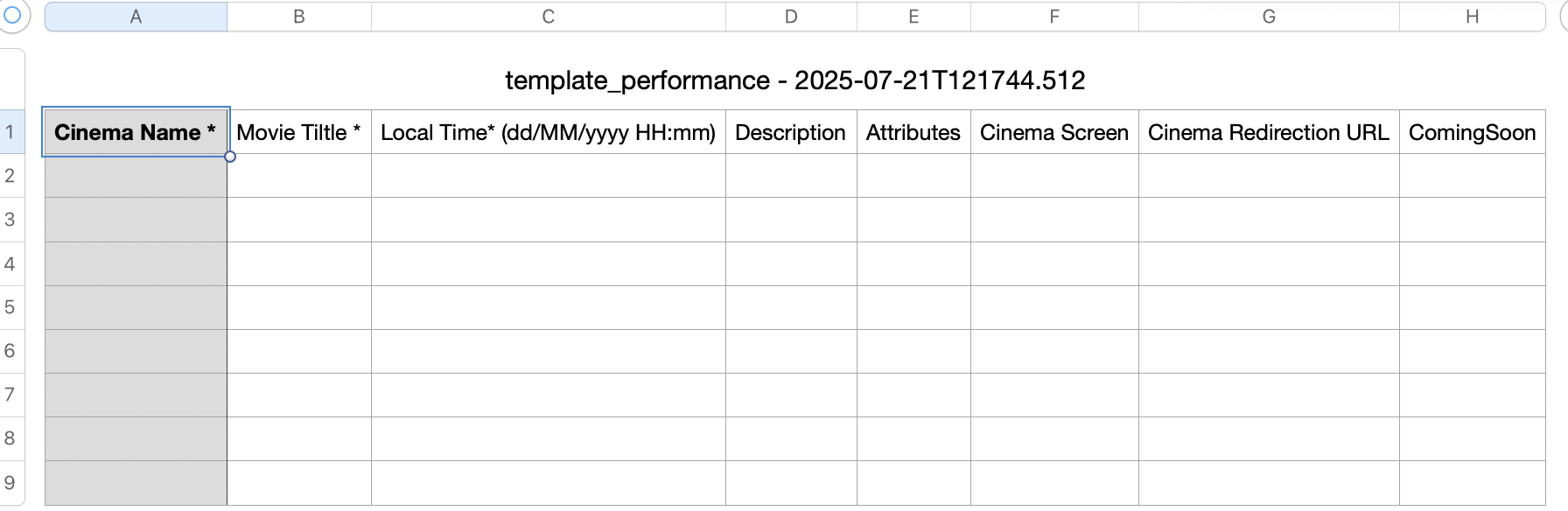
Once opened, you simply fill out Cinema name, movie title, time and date, and add the booking link to the field ‘Cinema Redirection Url’. Ensure that everything is filled out correct, especially the cinema name and movie title which must exactly match the data in the usheru database.
4. Once done, save the document as a CSV and click the button ‘Choose’ in the below menu to select your file and then click ‘Upload’.
It will tell you if your showtimes have been successfully uploaded or not. If you are having any issues with this process please contact clientsupport@usheru.com and we will help you upload this data.
Summary
Showtime data is automatically updated through usheru’s data providers, but in cases such as special events, screenings in non-traditional venues, or cinemas without online listings, manual entry ensures all showtimes appear correctly on your site. Whether adding a single showtime or multiple via CSV, always verify that all details match the database accurately and if you encounter any issues, contact clientsupport@usheru.com for assistance.