UPDATE 26 AUGUST 2025:
Given the recent feature we have rolled out to now enable new Properties to be created in the Dashboard and to be managed directly from the Dashboard, this has now impacted the MovieTab configuration settings, as per below.
This section will need to be updated once we finalised what Clients will be able to see in the Dashboard with the way Properties now work in our Dashboard and in the MovieSite configuration tab.
Once a MovieSite for a film goes live and is available on a Client's Connect platform, the MovieSite can be managed and edited from the usheru Dashboard.
Important Information About MovieSite Management Once Live
At this time, MovieSite (i.e. the redesigned Film Branded page) is only available for clients who also have the Connect platform
Once "MovieSite" is enabled for the Client for a particular film, the film page will show the new MovieSite design, with the design that visitors see first being either the Awareness design or Conversion design, depending on the film's stage in the release cycle (or the Client's manual decision to override this)
Once a Client's MovieSite goes live for a film, both usheru team members and the Client will be able to make the following changes to manage the film page
MovieSite Settings Editable by usheru Team Member in usheru Dashboard:
Links to usheru Dashboard:
In Demo Environment: used for managing Movie Site pages for demo, testing & client reviews, before going live
In Live Production Environment: use for managing Movie Site pages for Clients once these have gone live
usheru Team Member logs into usheru Dashboard

Go to the Films tab in order to configure that film
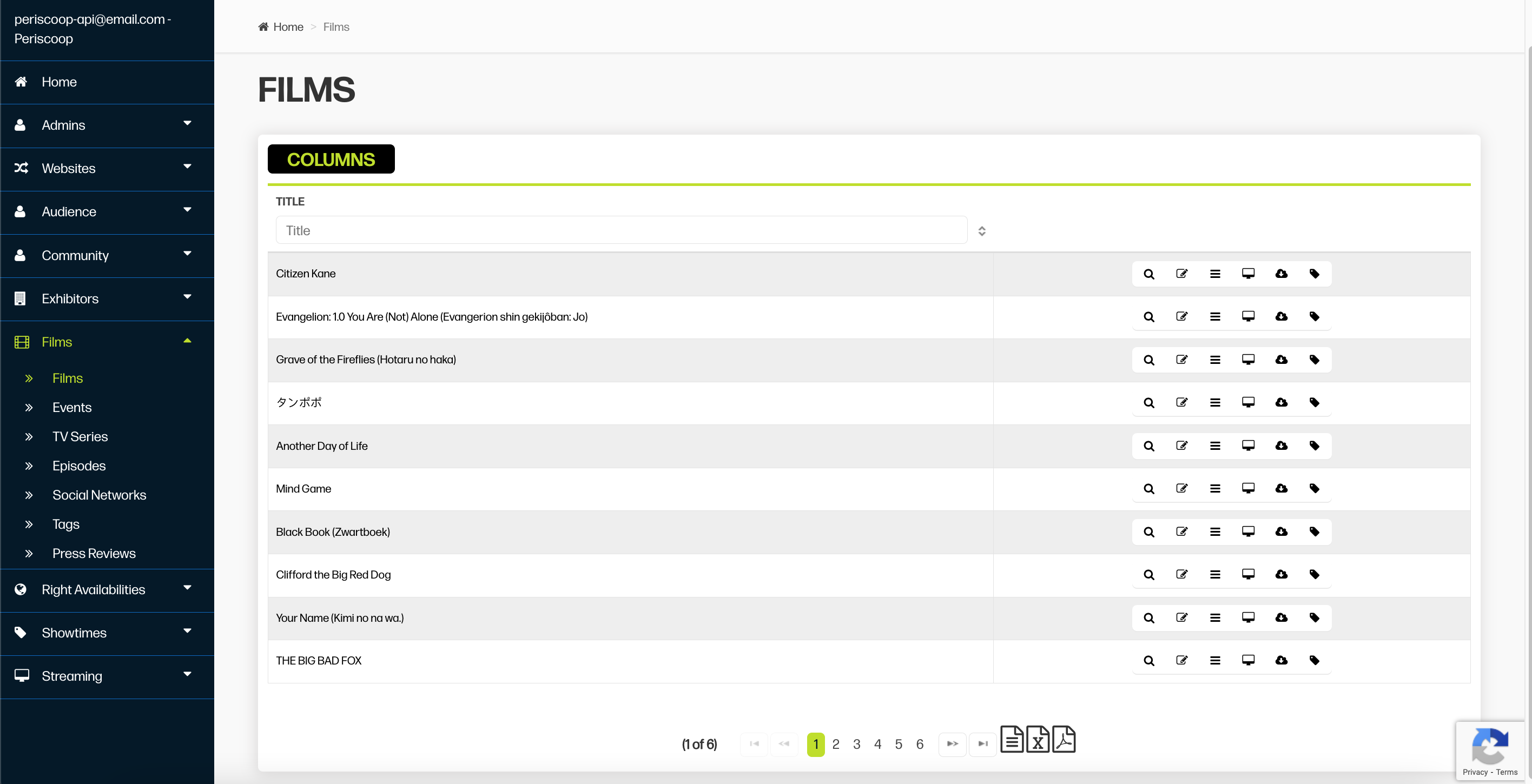
Search for the film by its title

Click the Edit icon on the film that you want in order to edit settings for that MovieSite film page
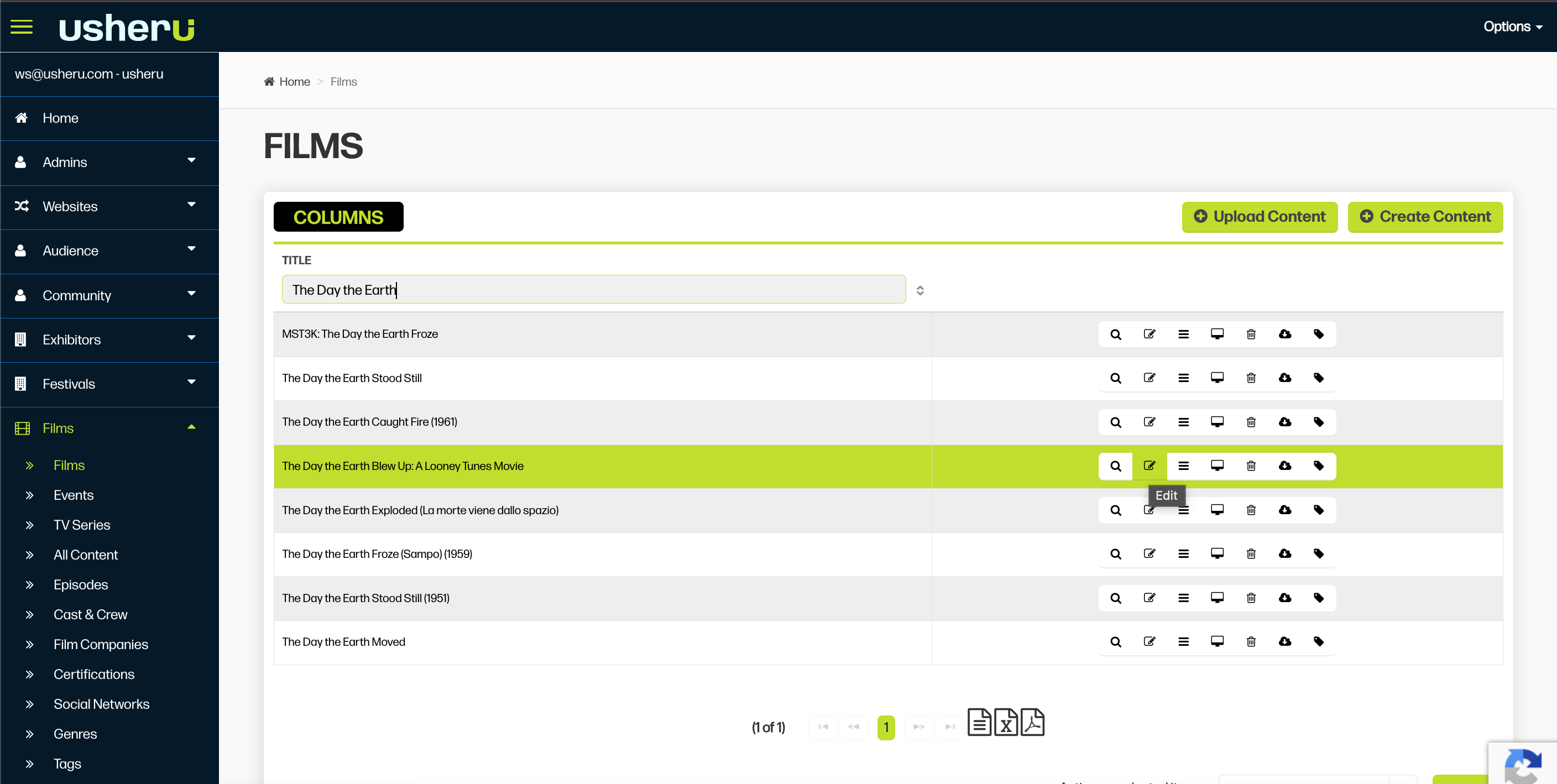
Go to MovieSite tab and type in the name of the Client that you want to configure the film page for
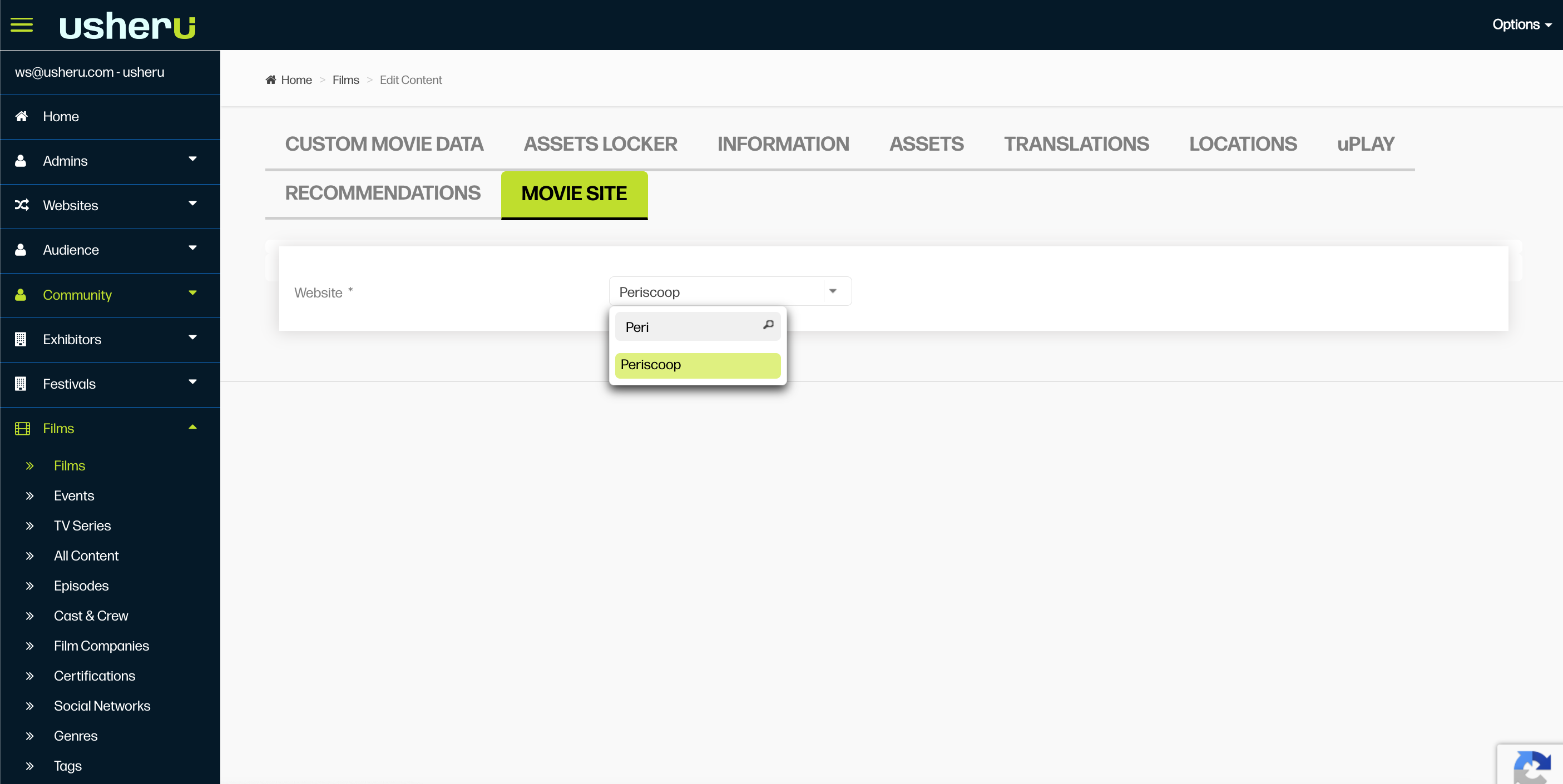
This will take you to the MovieSite management page with all the settings that can be changed/ configured by an usheru team member
Please note than an usheru team member will have access to do more Setting changes in the Dashboard than the Client, as per below:
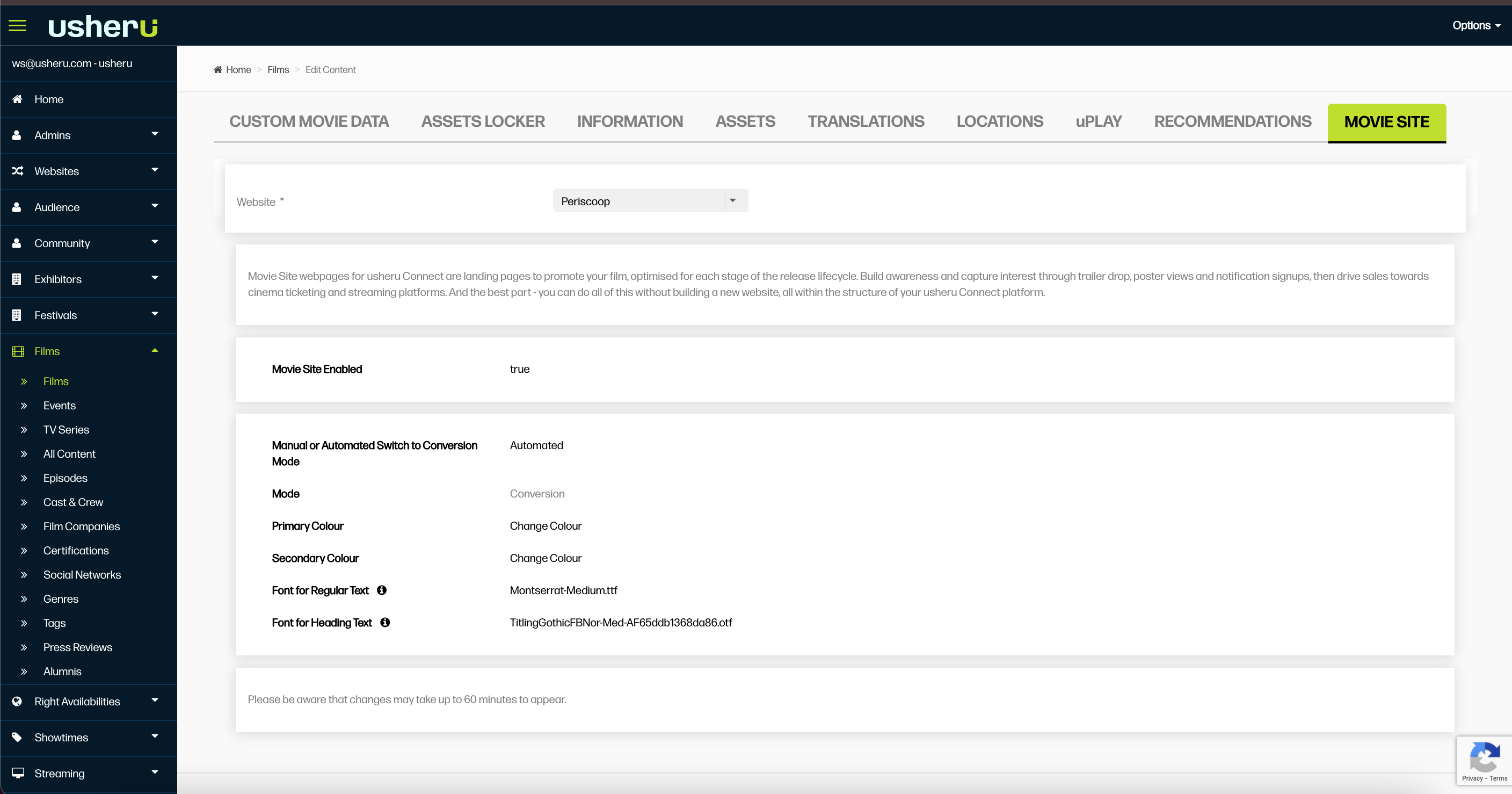
MovieSite Settings Editable by usheru Team Member in Dashboard:
As per the above Dashboard, an usheru team member will be able to edit the following Movie Site settings in the dashboard:
Enable or Disable MovieSite for a film (Please note: If a MovieSite is enabled for a Client on live site, disabling this will delete the page - please do not disable MovieSite for a live Client without verifying with other team members first)
Manual or Automated Switch
If Manual Switch is chosen, then choose between Awareness vs Conversion Mode
Choose Primary Colour
Choose Secondary Colour
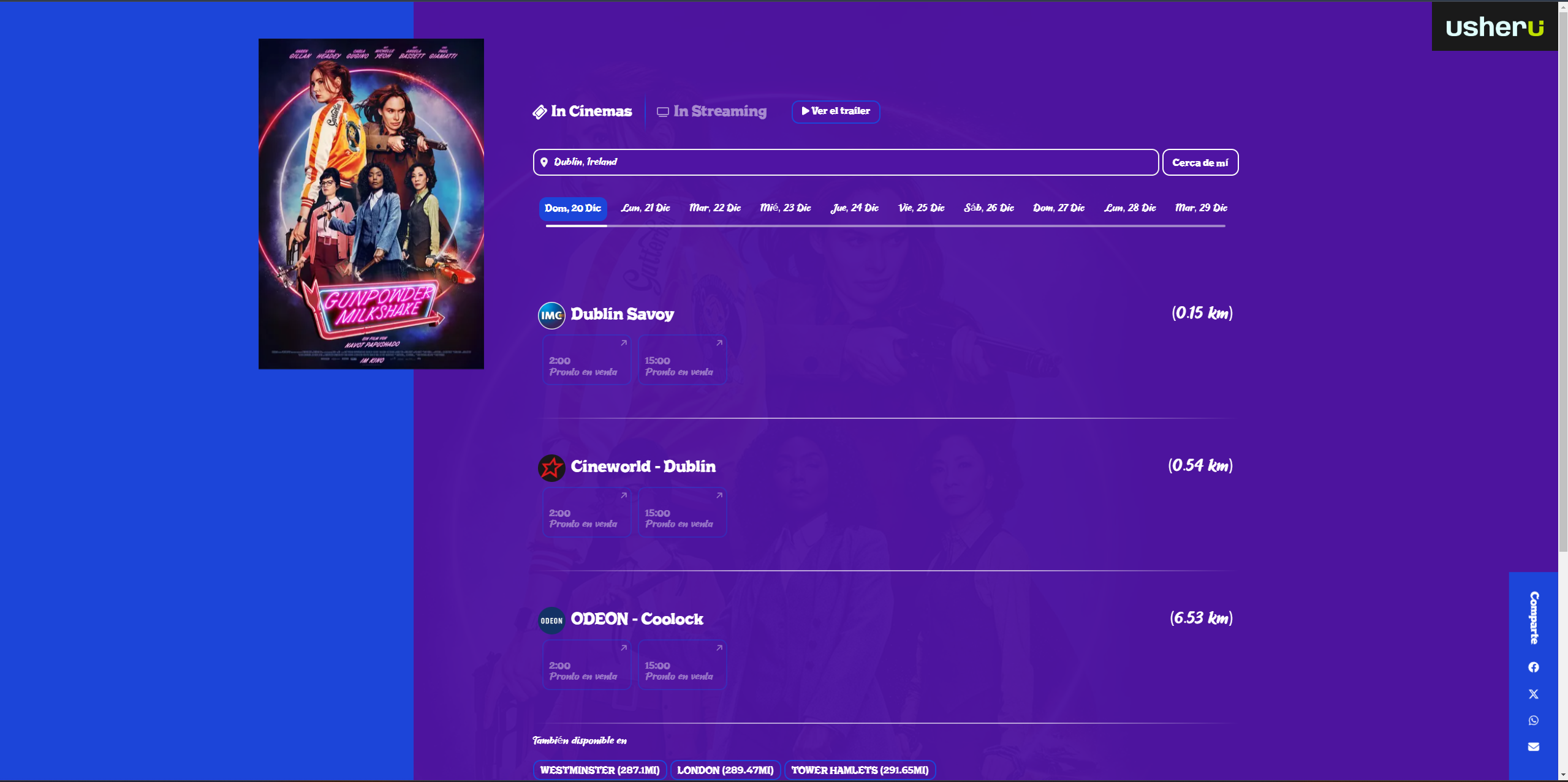
To find out what is the Primary & Secondary Colours, go to the Conversion page, which will show how these colours are used. From below:
Primary Colour is the dark blue at the left of the poster
Secondary Colour is purple that is used as the background colour of the page where the Showtimes appear
.png)
6. Change Font used for Regular Texts (Please upload font file)
7. Change Font used for Heading Texts (Please upload font file)
Important Note on Attempts to Disable MovieSite for a Film that currently has MovieSite Enabled
If an usheru Team member tries to disable MovieSite for a film that a Client current has MovieSite feature enabled, a warning Pop-up box (as per below) will come up to give a warning to make sure that the MovieSite is not accidentally deleted
